- Aug 3, 2025
- 338
- 0
If you’ve ever run into issues with your Android device, like getting stuck at the logo, needing to upgrade or downgrade your OS, or just wanting to flash stock firmware, the YGDP and QGDP Tools are the handy tools you need to fix things up. These are Windows-based programs designed by Coolpad, and they’re perfect for flashing .cpb firmware files, repairing devices, and even bypassing some locks.
When to Use These Tools?
Before You Start: Preparation Steps
Here’s what to do before you begin flashing your phone:
YGDP Tool: Step-by-Step Guide
Ready to give your device a fresh start with YGDP? Here’s a friendly walkthrough:
Maybe you’re working with QGDP instead? Here’s how it works:
When to Use These Tools?
- If your device is stuck at the logo or won’t boot.
- You want to unbrick, upgrade, or downgrade your OS.
- You need to remove screen locks or bypass FRP (Factory Reset Protection).
Before You Start: Preparation Steps
Here’s what to do before you begin flashing your phone:
- Back up all your device data, because flashing wipes everything: pictures, messages, apps, the lot.
- Make sure your battery level is at least 20% to avoid mid-flash trouble.
- Install all necessary drivers, especially for Coolpad devices. Usually, these come with your firmware or can be found online.
YGDP Tool: Step-by-Step Guide
Ready to give your device a fresh start with YGDP? Here’s a friendly walkthrough:
- Install YGDP Tool and Drivers
- Download the latest YGDP Tool and Android ADB drivers on your computer.
- Launch and Login
- Open YGDP Tool. When prompted for a password, enter 369 and hit Login.
- Load Your Firmware
- On the main screen, click the Config button.
- Click the folder icon, browse for the .cpb firmware file, and hit Apply. YGDP will check the file; hang tight for a minute or two.
- On the main screen, click the Config button.
- Ready Your Device
- Power off your Android device.
- Connect it to the computer while holding the Volume Up button.
- Power off your Android device.
- Start Flashing
- Click Start on YGDP. The progress bar will turn green as things move along—don’t unplug your device!
- Once you hit 100%, disconnect and reboot.
- Click Start on YGDP. The progress bar will turn green as things move along—don’t unplug your device!
- First Boot
- That first start may take longer than usual. Don’t worry, just let your device do its thing.
Maybe you’re working with QGDP instead? Here’s how it works:
- Install QGDP Tool and Coolpad Drivers
- Download the QGDP Tool and Coolpad USB drivers. This helps your computer recognize your device.
- Open and Login
- Launch QGDP Tool. Use password 369, ase, or smt—your tool version will tell you which works.
- Choose Firmware
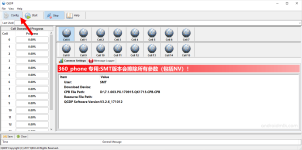
- Click Config, then Browse to select your .cpb firmware file. Click Apply.
- Prepare Your Device
- Power your device off and connect it to your PC with the USB cable.
- Flash Firmware
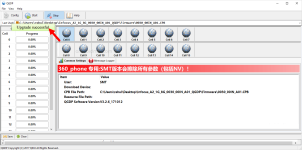
- Hit Start. You’ll see the progress and a bright “Upgrade Successful” message at the end.
- Hit Start. You’ll see the progress and a bright “Upgrade Successful” message at the end.
- Finish Up
- Disconnect and restart your device. It should be good to go!
- For Windows 7/8/10 issues, right-click the tool’s EXE file, go to Properties, and set compatibility mode to Windows XP.
- Never disconnect your phone during the flashing process.
- Always use the correct CPB firmware for your device model to avoid hardware or software issues.